> For the complete documentation index, see [llms.txt](https://ninjateam.gitbook.io/filebird/llms.txt). Markdown versions of documentation pages are available by appending `.md` to page URLs; this page is available as [Markdown](https://ninjateam.gitbook.io/filebird/addons/filebird-document-library/custom-pdf-thumbnails.md).

# Custom PDF Thumbnails

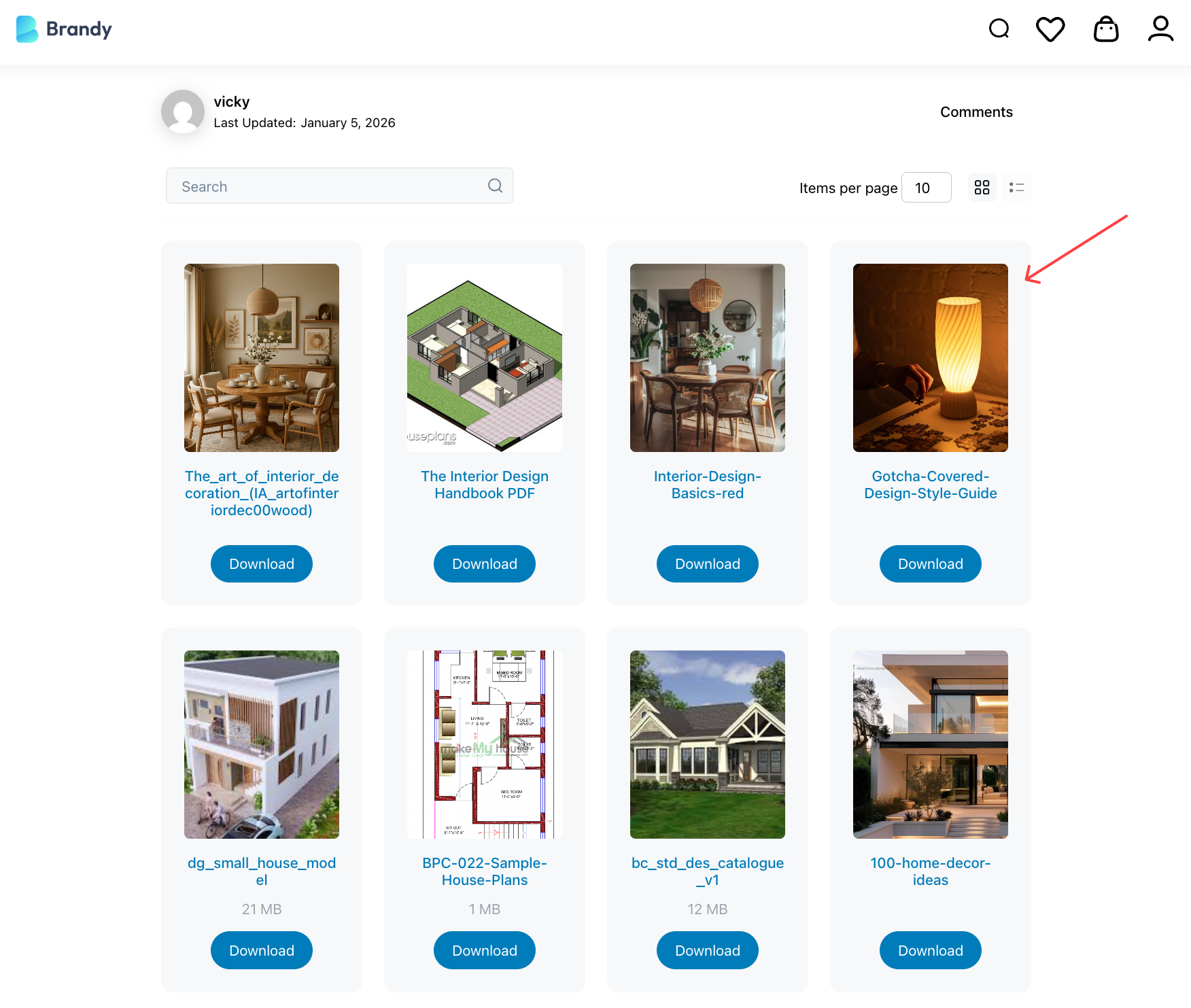
Selling digital PDF files, such as ebooks, planners, worksheets, catalogs, or reports, means presentation matters just as much as content. With the new Custom PDF Thumbnail feature in FileBird Document Library, you now have full control over how your PDF files look at first glance.

Instead of being stuck with the first page of the PDF, you can now choose a specific page or upload a custom image to represent your PDF. This gives your document library a cleaner, more branded, and more professional appearance.

<figure><img src="https://3041978267-files.gitbook.io/~/files/v0/b/gitbook-x-prod.appspot.com/o/spaces%2FyIWF9CNHLQhdztdjt8Uo%2Fuploads%2FSGtxnx9IMlXFNLGVsF1V%2Fshow%20custom%20thumbnails%20on%20PDF.png?alt=media&amp;token=0d91e849-afe4-454b-b717-757a19c62ba4" alt=""><figcaption></figcaption></figure>

#### Step 1: Upload Your PDF

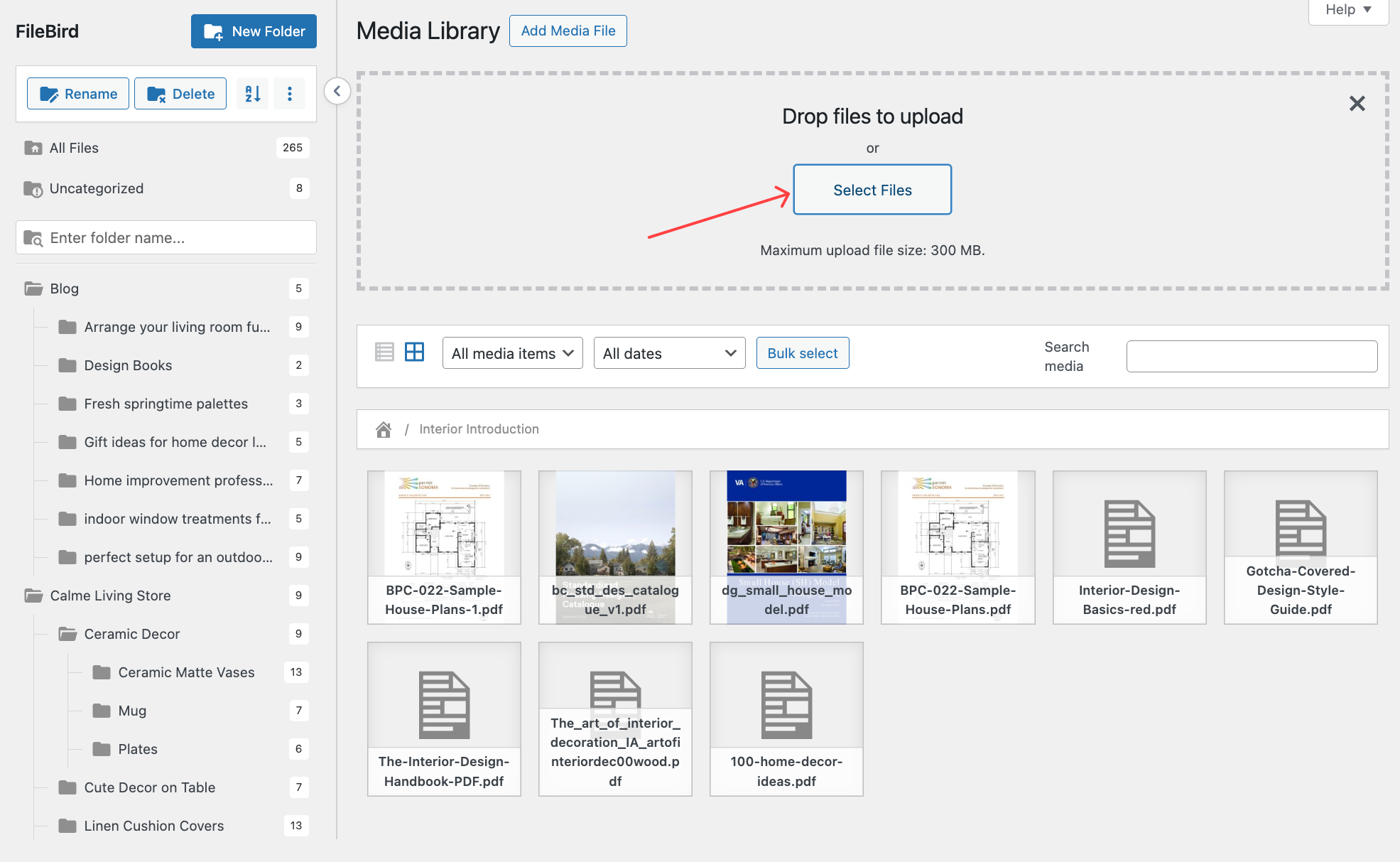
Upload your PDF file to the FileBird Document Library as you normally would.

<figure><img src="https://3041978267-files.gitbook.io/~/files/v0/b/gitbook-x-prod.appspot.com/o/spaces%2FyIWF9CNHLQhdztdjt8Uo%2Fuploads%2Fusob1TtfAo1UNMHGhr1q%2FUpload%20PDF%20File.png?alt=media&amp;token=33f8e9fc-70eb-4d71-baca-8f9b691ac492" alt=""><figcaption></figcaption></figure>

#### **Step 2: Open the Thumbnail Settings**

With this update, FileBird Document Library gives you a flexible way to customize PDF thumbnails. You have to:&#x20;

* Locate your PDF file in the media library
* Click on the file to open its details panel
* Find the Custom PDF Thumbnail option

<figure><img src="https://3041978267-files.gitbook.io/~/files/v0/b/gitbook-x-prod.appspot.com/o/spaces%2FyIWF9CNHLQhdztdjt8Uo%2Fuploads%2FysdmoPuk99eeExXZZQew%2FOpen%20the%20section%20to%20custom%20thumbnail.png?alt=media&amp;token=ffd02be1-841e-4628-82dd-2ab92737feb3" alt=""><figcaption></figcaption></figure>

#### **Step 3: Choose How Your Thumbnail Looks**

You can use any image from your media library to display as the thumbnail, or upload your own image as the thumbnail.&#x20;

<figure><img src="https://3041978267-files.gitbook.io/~/files/v0/b/gitbook-x-prod.appspot.com/o/spaces%2FyIWF9CNHLQhdztdjt8Uo%2Fuploads%2Fn9XaHf8J08xX6O1Rw74H%2Fconfigure%20the%20thumbnails%20for%20PDF%20file.png?alt=media&amp;token=0b6ac23e-20b1-4bc0-b3cc-917e76773d30" alt=""><figcaption></figcaption></figure>

#### **Step 4: Enable Thumbnail in Document Library**

Save your changes and move to the document library to enable the “Show Thumbnail” option.

Here you can preview the document library to see how your new thumbnail appears.

<figure><img src="https://3041978267-files.gitbook.io/~/files/v0/b/gitbook-x-prod.appspot.com/o/spaces%2FyIWF9CNHLQhdztdjt8Uo%2Fuploads%2F8hTtvCHbPxACRJMVxgHJ%2Fenable%20show%20thumbnail%20on%20document%20library.png?alt=media&amp;token=6deefb23-1162-46d6-a69b-85e899525687" alt=""><figcaption></figcaption></figure>

The Custom PDF Thumbnail feature in FileBird Document Library is designed with digital sellers in mind. It gives you control, improves visual appeal, and helps your PDF library look more professional and conversion-friendly.

If you’re serious about selling PDFs and organizing them in folders, this small visual upgrade can make a big difference.